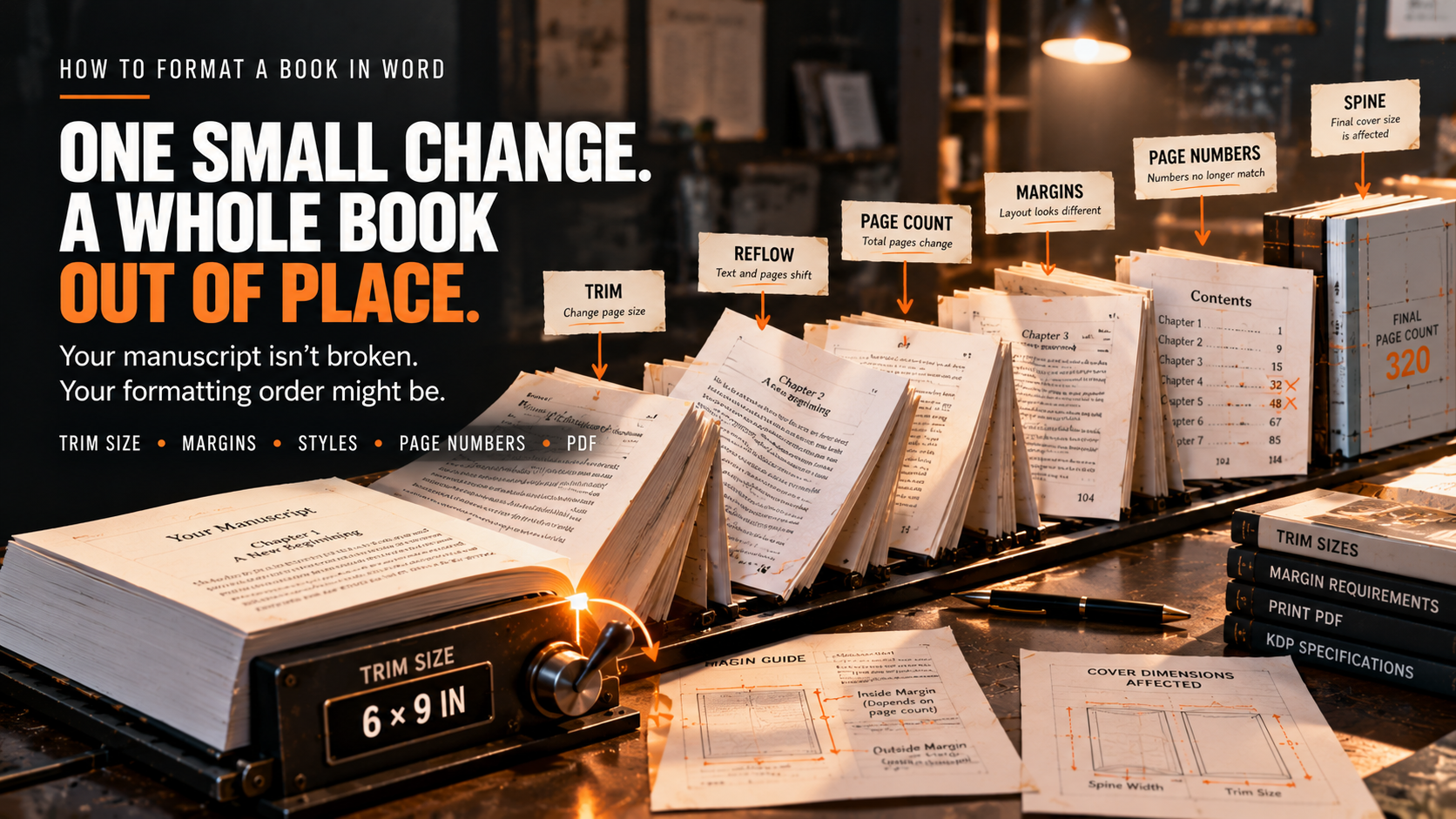
You open your finished manuscript, switch the page size to 6 × 9 inches, and suddenly the book looks different. A chapter that started on the right now opens on the left. The page numbers stop making sense. Your table of contents still shows the old page references.
Nothing is wrong with the writing. The problem is that Word is rebuilding the pages around your new settings.
If you're learning how to format a book in Word for an Amazon KDP paperback, the safest approach is to work in a fixed order: page setup, margins, paragraph styles, chapter structure, page numbering, and PDF export. Changing those settings randomly often means correcting the same layout twice.
At Amazon KDP Experts, paperback production starts with the approved manuscript and the print edition the author wants to create. You can use the same approach yourself, particularly for a text-heavy novel or nonfiction book.
Key Takeaways
- Set the trim size before styling the pages. Your choice changes page count and may affect the final cover spine.
- Use mirrored margins with the correct inside allowance. KDP bases the minimum inside margin on page count; its Word instructions leave the separate Gutter field empty.
- Use Styles, real page breaks, and section breaks. They control chapter openings and numbering more reliably than manually inserted spaces.
- Inspect the exported PDF, not just Word. Check dimensions, fonts, pagination, and KDP's Print Previewer before approving the book.
How Do You Format a Book in Word for Amazon KDP?
Start with an approved manuscript, select a supported paperback trim size, and enter the correct page dimensions in Word. Set mirrored margins based on the final page count, then apply consistent body and heading styles. Use breaks to control chapters and numbering, update the contents page, export a print-ready PDF, and inspect it in KDP's Print Previewer.
This guide concentrates on the Word-to-paperback workflow. For requirements across Kindle, paperback, and hardcover, see our KDP formatting requirements guide. The two tasks overlap, but they aren't identical: a print interior uses fixed pages, while a typical Kindle ebook lets text reflow.
Before You Start: Lock the Manuscript and Print Choices
Don't format the only copy of your manuscript. Save a working version, such as Book-Title-Paperback-Interior.docx, and keep the approved source untouched. Turn off Track Changes or accept the changes you've approved, resolve comments, and confirm the final chapter order.
A paperback interior is also different from a manuscript submitted to an agent or editor. If you're still preparing a draft for consideration, our novel manuscript format checklist covers that earlier stage.
Make Three Decisions Before Opening Page Setup
- Trim size: Choose a KDP-supported physical book size. A 6 × 9-inch paperback is a common U.S. example, not a required default.
- Ink and paper: Select a supported combination for your title, such as black ink on white or cream paper where available. These choices affect available page-count ranges and the eventual cover spine calculation.
- Bleed: Decide whether any background or graphic reaches the page's trimmed outer edge. Text-only books usually don't need interior bleed.
Pro Tip: Record those choices at the top of your working notes. You will need them again when preparing the print cover and reviewing KDP's setup options.
Step 1: Set the Book's Trim Size in Word
The following desktop instructions use Word for Windows. Microsoft's menu labels can differ across versions; on Word for Mac, the equivalent controls may appear under Layout or File → Page Setup, including custom paper sizes.
In Word for Windows, choose Layout → Size → More Paper Sizes. Enter the page dimensions and set Apply to: Whole document.
For a 6 × 9-inch paperback, use these dimensions:
| Setting | No Bleed | With Interior Bleed |
|---|---|---|
| Finished trim size | 6 × 9 in | 6 × 9 in |
| Word/PDF page width | 6 in | 6.125 in |
| Word/PDF page height | 9 in | 9.25 in |
| What extends beyond the trim | Nothing | Bleeding elements extend past top, bottom, and outside edges |
| Interior upload | PDF recommended | PDF required |
These are interior-file measurements, not the dimensions of the separate paperback cover. KDP explains the different requirements in its paperback submission guidelines.
If you're using bleed, don't simply drag a picture to the edge of a regular 6 × 9-inch page. Set the larger file dimensions at the beginning and position the bleeding content accordingly. Important text and captions must stay inside the safe margins.
Pro Tip: Word will reflow text when the page size changes. Let it finish before making decisions about paragraph spacing, chapter pages, or the cover. Don't try to preserve the old page count by squeezing everything into smaller text.
Step 2: Set Mirror Margins and the Correct Inside Margin
A printed paperback has facing pages. The inside edge is near the binding; the outside edge is near the trimmed outer side. Mirror margins make Word alternate those positions for left- and right-hand pages.
Open Layout → Margins → Custom Margins. Under Multiple pages, choose Mirror margins, and apply the setting to the whole document.
What Inside Margin Does KDP Require?
The minimum depends on your manuscript's total page count:
| Page Count | Minimum Inside Margin | Minimum Outside, No Bleed | Minimum Outside, With Bleed |
|---|---|---|---|
| 24–150 | 0.375 in | 0.25 in | 0.375 in |
| 151–300 | 0.5 in | 0.25 in | 0.375 in |
| 301–500 | 0.625 in | 0.25 in | 0.375 in |
| 501–700 | 0.75 in | 0.25 in | 0.375 in |
| 701–828 | 0.875 in | 0.25 in | 0.375 in |
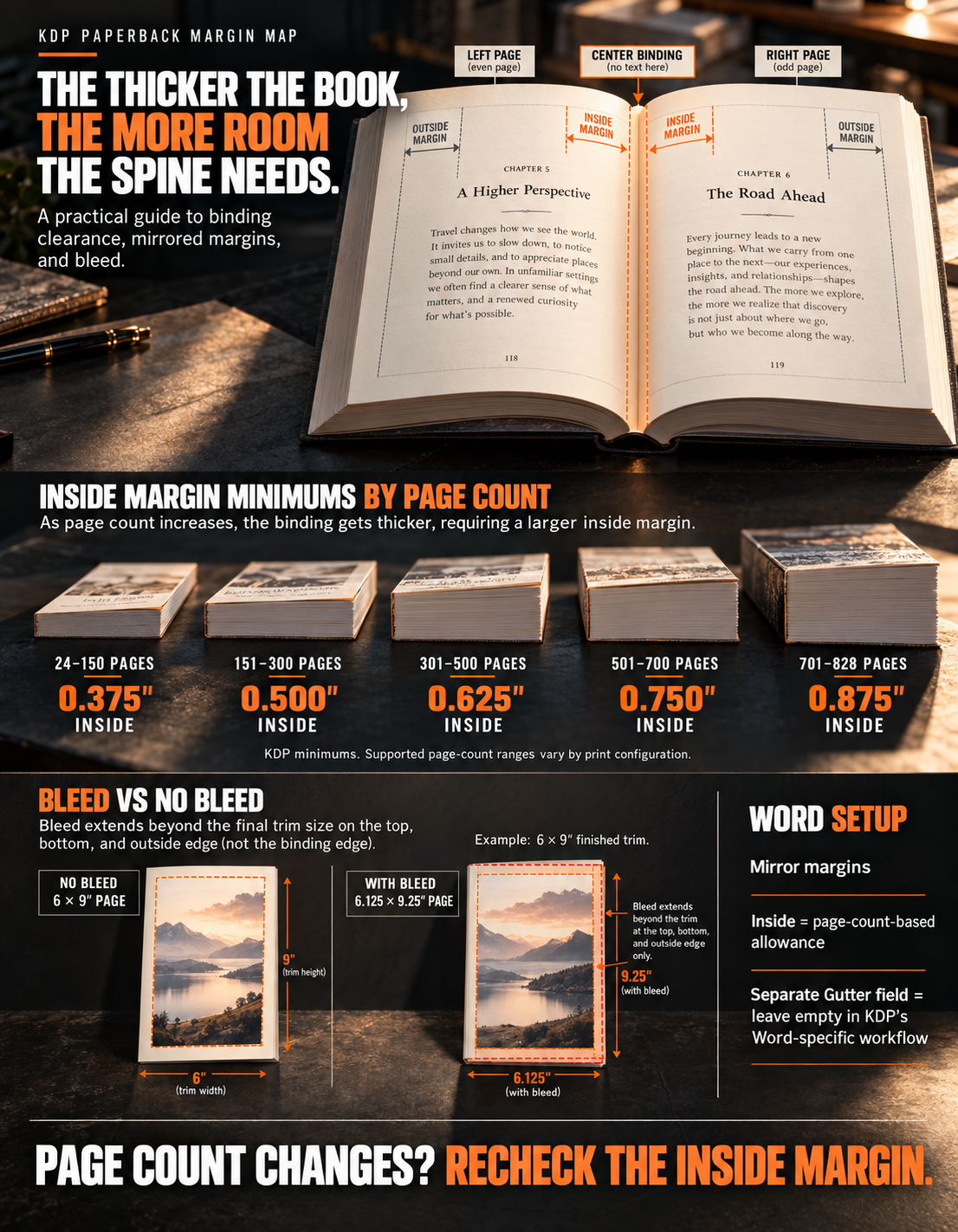
These are KDP minimums, not necessarily the most comfortable design measurements. Top and bottom margins also have minimums: at least 0.25 inches without bleed or 0.375 inches with bleed. Books with running headers often look better with more room. Supported page-count limits vary by print configuration.
Should You Enter a Value in Word's Gutter Field?
For the workflow described in Amazon's official Word paperback guide, enter the full required Inside margin and leave Word's separate Gutter field empty. Don't add another binding allowance on top of the inside margin unless you're following a separately verified production setup.
Amazon's own reminder is useful:
“If your page count changes, go back and check the inside margin because it may also need to change.”
Illustrative example: Your first layout has 298 pages, so the minimum inside margin is 0.5 inches. After a body-style change, the book reaches 304 pages. The applicable minimum becomes 0.625 inches. Update the inside margin, review the resulting page count again, and keep checking until the settings and page count agree.
Step 3: Format Body Text and Chapters With Word Styles
Instead of changing each paragraph manually, use Word's built-in Styles as your starting point. A style controls a group of formatting decisions together, so later adjustments are more predictable.
Set One Consistent Body Style
In Home → Styles, right-click Normal and choose Modify. Set a readable body typeface and size suited to the trim dimensions. Open Format → Paragraph to review alignment, first-line indentation, line spacing, and space before and after paragraphs.
For a conventional novel, body paragraphs often use a first-line indent with little or no extra space between them. A practical nonfiction guide may use more spacing between short sections. Choose the pattern that suits your book; don't combine oversized indents with oversized paragraph gaps.
Test the design on one representative chapter before applying it throughout. A sample containing ordinary text, quotations, dialogue, or subheadings will reveal most obvious problems.
Apply Chapter Heading Styles and Proper Breaks
Select a chapter title and apply Heading 1 under Home → Styles. Modify the style to match the design. Use subordinate headings consistently in nonfiction books where needed.
To begin each chapter on a new page, use Insert → Page Break, or set Page break before under the chapter-heading style's paragraph options. Don't press Enter repeatedly to push a heading onto the next page.
A Two-Minute Test for Hidden Formatting Problems
- Select Home → ¶ (Show/Hide) to display paragraph marks, spaces, page breaks, and section breaks. On Word for Windows, Ctrl+Shift+8 usually toggles this view; on Mac, Command+8 does.
- Go to a chapter that starts too low or unexpectedly moves to another page. Look for empty paragraph symbols (¶), a manual page break, or a section break immediately before the heading.
- Remove only the unwanted empty paragraphs or duplicate breaks. Keep deliberate section breaks that control numbering or headers.
- Return to normal view and check both the affected page and the one before it.
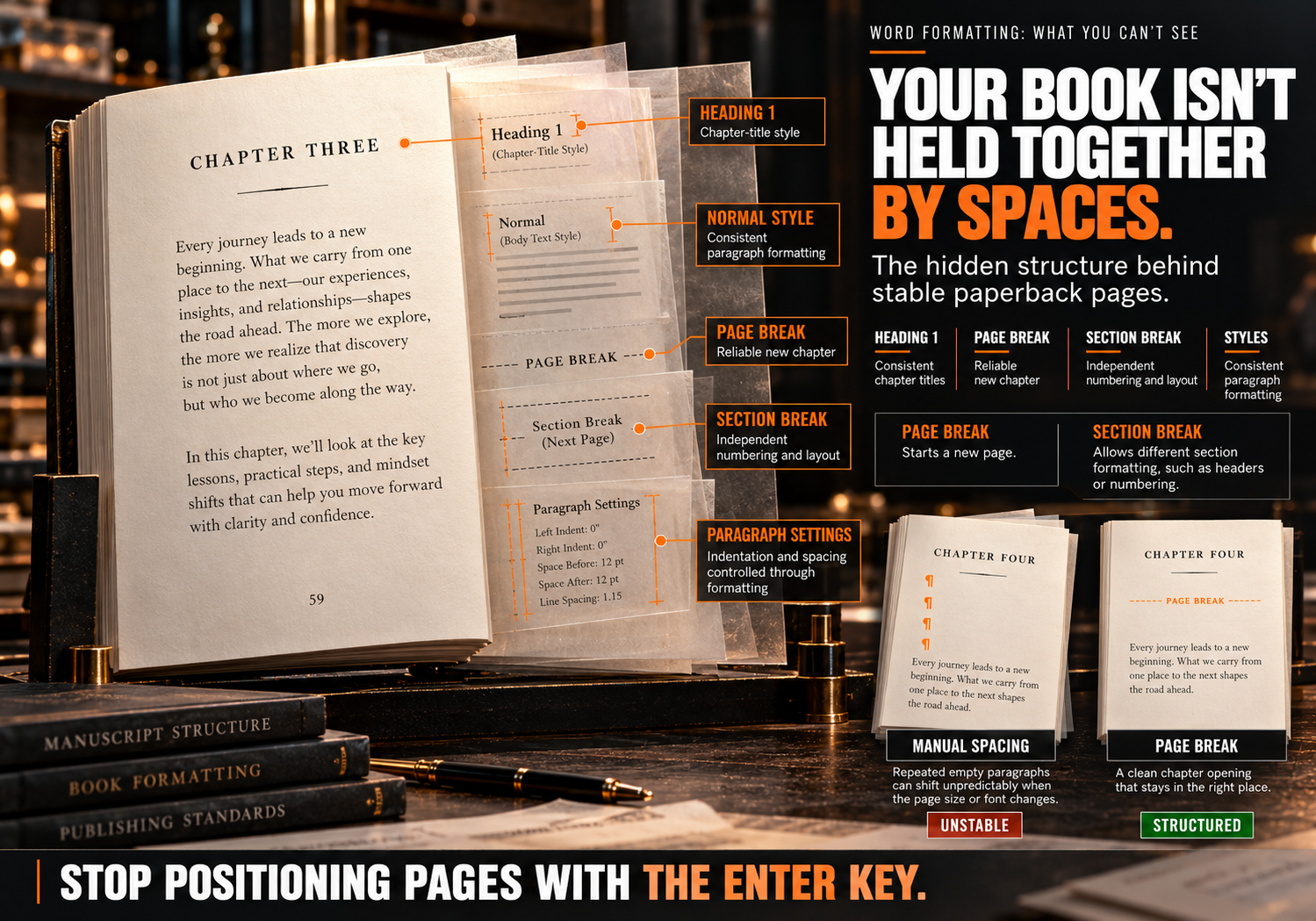
Pro Tip: Don't delete a section break just because it creates a blank page. A section break can carry header, footer, numbering, and page setup rules. Inspect those settings first; removing the break may change the preceding pages.
Step 4: Fix Front Matter, Page Numbers, and the Table of Contents
Your paperback might begin with a title page, copyright page, dedication, and contents page. The main book can have different page-numbering rules from this front matter.
Use a Section Break at the Start of the Main Text
Place the cursor immediately before Chapter 1. Choose Layout → Breaks → Next Page under Section Breaks. This creates a new section instead of merely pushing the chapter onto another page.
Double-click the footer where the Chapter 1 page number should appear. In Header & Footer, turn off Link to Previous for that footer if the previous section must use a different numbering style. Remember that headers and footers are controlled separately; with different odd/even options enabled, their links may also need separate attention.
Next, select Page Number → Format Page Numbers and choose the number format and Start at value. For example, the front matter can have no visible numbers while Chapter 1 begins with the visible number 1. Check the printed page sequence too: in a normal left-to-right book, odd pages appear on the right and even pages on the left.
Keep Chapter Openings and Running Headers Clean
Use a different First Page when a section's opening should not display the same header or footer as following pages. If you want different left- and right-page headers, consider Different Odd & Even Pages. Review several chapters rather than assuming a rule applied correctly everywhere.
Update the Table of Contents Last
For a book that needs a printed contents page, apply heading styles and choose References → Table of Contents. After the layout settles, click the table and choose Update Table → Update entire table. This refreshes headings and page references.
If you later change the font, trim, margins, or chapter text, repeat the update before exporting the final PDF.
Step 5: Inspect Tables and Other Elements That Reflow Badly
Text-heavy books are usually simpler to format than workbooks or illustrated nonfiction. But even a small table, quotation box, or photograph can shift when the text around it changes.
Keep Content Inside the Print Area
Check that tables, footnotes, captions, and important details stay inside the required margins. KDP calls for printed images of at least 300 DPI at their final placed size. Don't rely on how sharp an image looks on a monitor.
For a wide table, check that the columns stay legible. A table that only fits when reduced to a tiny type should be redesigned or divided rather than squeezed into the paperback.
Keep the complete front, spine, and back cover out of the interior PDF. The print cover is a separate KDP file sized after the final page count and print choices are settled.
Step 6: Export and Inspect a Print-Ready PDF
Once the layout is stable, save the DOCX, update the contents page, and export the interior to PDF.
On supported Word for Windows versions, use File → Export → Create PDF/XPS. On Word for Mac, use its Save As / Export → PDF controls. Select standard or print-quality output rather than an option optimized for minimal screen file size.
Then open the PDF itself and inspect the first pages, a middle chapter, the contents page, and the ending.
How to Verify That Your Fonts Are Embedded
If you have Adobe Acrobat or Acrobat Reader, open the PDF and select Document Properties → Fonts (the menu path varies by platform). Examine the list of fonts. Entries generally should indicate Embedded or Embedded Subset. If required fonts aren't embedded, review the font's embedding permissions and regenerate the PDF with suitable settings or a different licensed font.
Also check the PDF's page dimensions. A no-bleed 6 × 9-inch interior should use 6 × 9-inch pages, whereas the corresponding bleed interior requires 6.125 × 9.25-inch pages.
KDP expects a single-page file, not two-page spreads, and an interior without crop marks, visible comments, tracked edits, unfinished placeholders, or unsupported restrictions.
Fix Problems in Word, Then Export Again
Don't treat KDP Print Previewer as an editor for your source file. If it flags a margin, font, bleed, or page-size problem, make the correction in the DOCX and create a new PDF. Amazon explains this correction cycle in its paperback formatting troubleshooting guidance.
Use the same sequence after every significant correction:
Correct the Word document → update the table of contents → review page count and inside margin → export the PDF again → inspect in Print Previewer → update the cover dimensions if the page count changed.
KDP may round an uploaded print manuscript's page count up to an even number. Use the page count shown in your final publishing setup when completing the cover calculations.
Why Is Your Word Paperback Layout Still Breaking?
Rather than changing every setting again, start with the symptom and inspect its likely cause.
| What You See | Likely Cause | First Check |
|---|---|---|
| A chapter starts halfway down a page | Extra empty paragraphs, page-break setting, or an unwanted break | Turn on ¶ and inspect before the heading |
| Page numbers restart unexpectedly | Section numbering or a linked footer changed | Section break, Link to Previous, Start at |
| Text appears too close to the spine | Inside margin is below the current page-count minimum | Mirror margins and final page count |
| Contents page points to wrong pages | TOC wasn't updated after reflow | Update entire table |
| A blank page appears unexpectedly | Odd/even section break or manual page break | Show formatting marks; inspect the break type |
| Table or caption crosses the margin | Object dimensions or positioning don't fit | Object width, wrapping, printable area |
| PDF text differs from Word | Font substitution or PDF export behavior | Document Properties → Fonts; regenerate PDF |
| KDP flags a bleed or trim issue | Incorrect page dimensions or content outside the allowed area | KDP setup, file dimensions, bleed selection |
Do this: Work from the specific error back to the Word setting that controls it.
Not that: Reformat the entire manuscript every time a single chapter or footer changes.
When Should You Ask a Professional to Format the Book?
Word works well for many straightforward paperbacks. You may be comfortable finishing the file yourself when the book has consistent text, a simple contents page, and few complex elements.
More involved projects can require a different approach: extensive footnotes, large tables, unusual typography, image-heavy chapters, multiple print editions, or errors that continue after you correct the source file.
Professional book formatting services can help prepare a finished manuscript for a specified print or digital edition. If your interior files are already approved but you need assistance with platform setup, file submission, and publication decisions, KDP publishing services may be the more relevant next step.
The work should be scoped around the actual problem rather than an automatic full-service package. Amazon KDP Experts is an independent service provider and is not affiliated with Amazon or Kindle Direct Publishing.