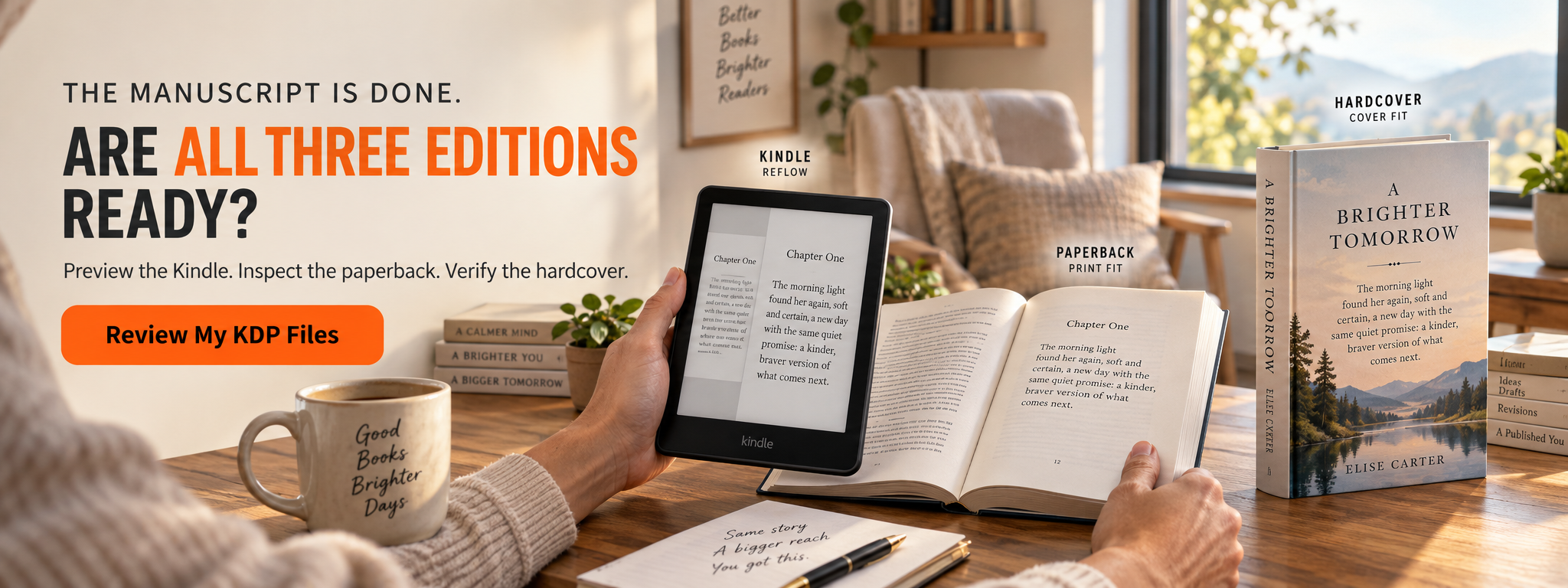
Your manuscript can look perfect in Word and still be wrong for KDP.
The Kindle edition may contain fixed page numbers that do not belong in a reflowable eBook. Your paperback may use the correct trim size but the wrong gutter for its page count. Your hardcover interior may pass while the cover fails because you reused paperback dimensions.
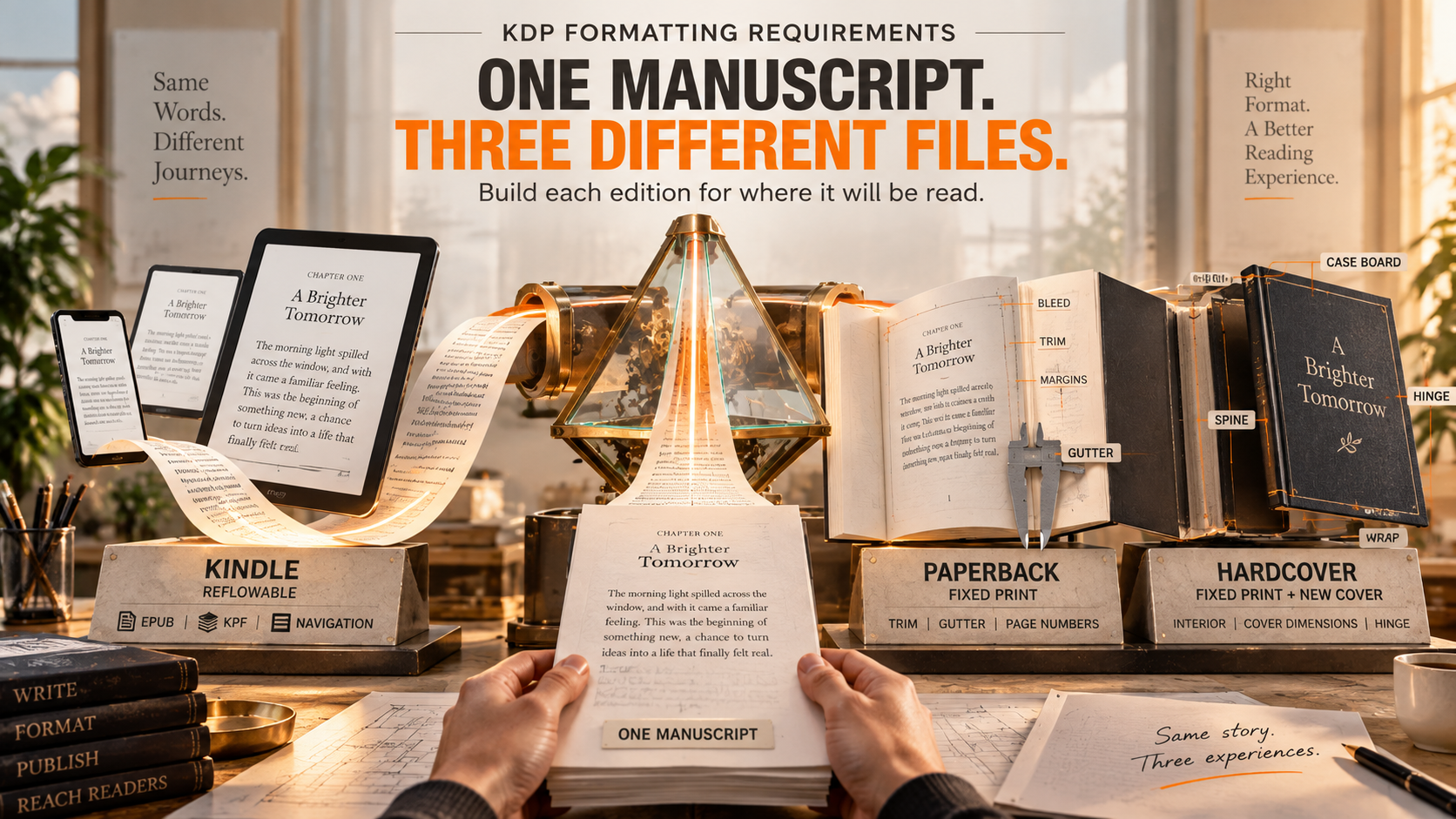
That is the problem with KDP formatting requirements: Kindle, paperback, and hardcover are versions of the same book, but they are not the same production file.
Amazon KDP Experts approaches formatting after the text is approved, then prepares the edition-specific files the book actually needs. The current formatting service includes EPUB, KPF, and print-ready PDF delivery depending on the selected format.
KDP formatting is correct when each edition is built for its own reading environment: reflowable digital structure for Kindle, fixed print dimensions for paperback, and print-ready interior plus hardcover-specific cover dimensions for hardcover.
Key Takeaways
- Kindle, paperback, and hardcover should not be treated as one interchangeable file.
- Print books need the correct trim size, page-count-based margins, bleed setup, embedded fonts, and image quality.
- Kindle eBooks need reflowable structure, clean headings, working navigation, and no fixed page furniture such as headers and footers.
- Paperback and hardcover interiors can follow similar print rules, but their cover files are different.
- Previewing is part of formatting, not something to leave until after publication.
What Are the KDP Formatting Requirements in 2026?
KDP requirements depend on the edition you are publishing.
For Kindle, Amazon supports formats including DOC/DOCX, KPF, and EPUB, and text-heavy books normally use a reflowable layout. Paperback and hardcover interiors use fixed page dimensions, and Amazon recommends PDF for the best print results. If a print interior contains bleed, the manuscript must be uploaded as PDF.
The fastest way to understand the difference is to compare the three editions.
| Requirement | Kindle eBook | Paperback | Hardcover |
|---|---|---|---|
| Layout | Usually reflowable | Fixed | Fixed |
| Common upload file | EPUB, DOCX, KPF | PDF recommended | PDF recommended |
| Fixed trim size | No for normal reflowable books | Yes | Yes |
| Page-count-based gutter | No | Yes | Yes |
| Interior bleed | Depends on eBook type | Supported | Supported |
| Headers / footers | No | Optional design choice | Optional design choice |
| Page numbers | Not inserted as normal fixed page numbers | Yes, where appropriate | Yes, where appropriate |
| Separate cover file | Front cover | Full wrap | Hardcover-specific full wrap |
| Preview step | Kindle Previewer / Online Previewer | Print Previewer | Print Previewer |
This distinction is where many formatting problems begin.
A print-ready PDF is not automatically a good Kindle file, and an eBook manuscript is not automatically ready to print.
What Does a Kindle eBook Need?
Most novels, memoirs, essays, and conventional nonfiction books should be prepared as reflowable eBooks.
Reflowable means the reader can change text size and other display settings. Your job is therefore not to lock every line into the position you see in Word. Your job is to give Kindle a clean document structure it can adapt to different devices.
Use Structural Formatting Instead of Visual Tricks
KDP's Word guide tells authors to use paragraph styles and proper indentation rather than tabs. Chapter titles should use Heading 1, which also supports table-of-contents creation.
That means:
Use: paragraph styles, real headings, page breaks, hyperlinks, proper TOC navigation.
Avoid: repeated spaces, tabs for indentation, rows of blank returns, manually typed page numbers, or formatting that depends on one screen size.
Do Not Add Print Furniture to a Reflowable eBook
KDP specifically states that reflowable eBooks do not need traditional headers, footers, or fixed page numbers because the reader can change font size and display settings.
A Kindle file should behave like a digital book, not like a photograph of a printed page.
Which eBook File Should You Upload?
KDP currently supports several manuscript formats. The most practical choices for standard text-heavy books are:
- EPUB
- DOC/DOCX
- KPF from Kindle Create
Amazon describes KPF as a practical way to prepare books consistently across Kindle devices, while EPUB remains a supported publishing format.
PDF is supported in some eBook situations, but KDP itself says PDF is not recommended for text-heavy Kindle books.
What Are the Paperback Formatting Requirements?
Paperback formatting becomes much more mathematical because the page will be physically trimmed and bound.
You need to make five decisions correctly:
trim size → page count → margins → bleed → final PDF
Change one late in the process and the others may change with it.
Choose Trim Size Before Formatting the Interior
Trim size is the final physical width and height of the page.
KDP identifies 6 × 9 inches as the most common U.S. paperback trim size, though authors can choose from several supported dimensions.
That is the one current external benchmark used in this article.
Do not choose 6 × 9 simply because it is common. Compare physical books in your category first. Reader expectations for a novel, workbook, children's title, and business book are not identical.
Your Inside Margin Depends on Page Count
This is not an aesthetic preference.
KDP sets minimum inside margins according to the number of pages because thicker books need more room near the binding.
| Page Count | Minimum Inside Margin | Outside, No Bleed | Outside, With Bleed |
|---|---|---|---|
| 24–150 | 0.375 in | ≥ 0.25 in | ≥ 0.375 in |
| 151–300 | 0.5 in | ≥ 0.25 in | ≥ 0.375 in |
| 301–500 | 0.625 in | ≥ 0.25 in | ≥ 0.375 in |
| 501–700 | 0.75 in | ≥ 0.25 in | ≥ 0.375 in |
| 701–828 | 0.875 in | ≥ 0.25 in | ≥ 0.375 in |
These are minimum KDP specifications, not a command to use the smallest possible margins.
Your typography may look better with more space.
When Does Your Paperback Need Bleed?
Bleed is required when an image, background, illustration, or graphic must print all the way to the trimmed edge.
For print interiors with bleed, KDP says the artwork should extend 0.125 inch beyond the top, bottom, and outside trim edges. A 6 × 9 inch interior with bleed therefore becomes 6.125 × 9.25 inches at the file level.
KDP gives authors a particularly useful warning:
“One of the most common reasons manuscripts don’t pass quality review is failure to account for bleed.”
If your interior is ordinary text surrounded by white margins, you usually do not need interior bleed.
What Must Be Checked in a Print PDF?
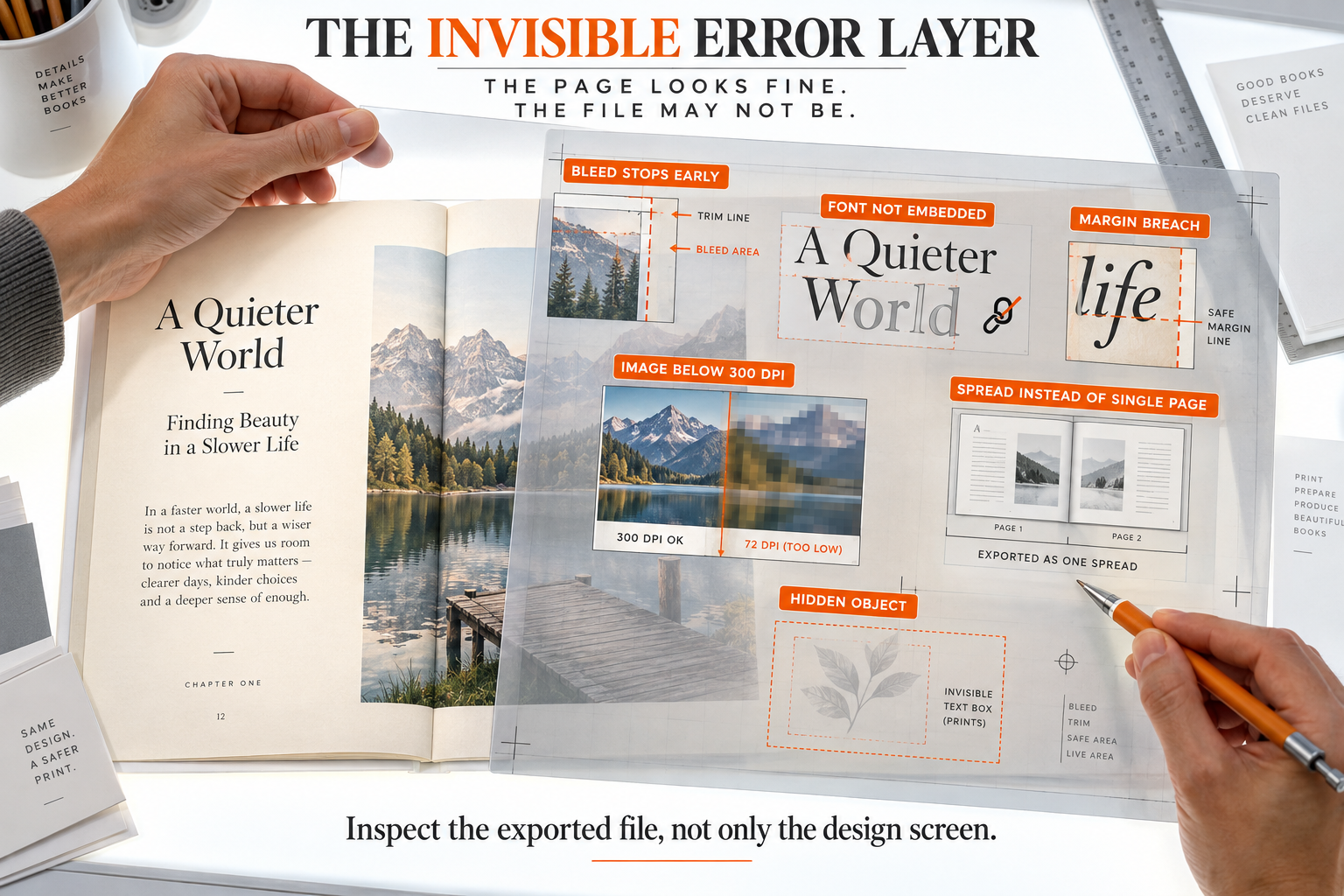
Before uploading a paperback or hardcover interior, check the file itself rather than relying on how it looked inside the design program.
KDP's current submission guidance requires or recommends the following for print interiors:
- fonts embedded in the file
- minimum text size of 7 points
- images at least 300 DPI
- single pages, not two-page spreads
- correct page dimensions
- content inside required margins
- no password protection
- bleed dimensions when applicable
This is where a technically beautiful source file can fail after export. The PDF is the artifact KDP prints.
Inspect the PDF.
Are Hardcover Requirements the Same as Paperback?
The interior principles are largely shared, but the edition is not identical.
KDP tells authors to use its paperback interior-formatting resources when preparing hardcover interiors. However, hardcover has its own supported trim sizes, page-count limits, and cover construction.
KDP's current hardcover program supports 75 to 550 pages and five trim sizes. Hardcovers are case laminate, meaning the artwork is printed directly onto the case rather than placed on a removable dust jacket.
Do Not Reuse a Paperback Cover for Hardcover
Your interior may sometimes work for both formats.
Your cover does not.
KDP explicitly requires separate paperback and hardcover cover files. Hardcover files account for the case wrap, spine, and hinge areas that do not exist in the same form on paperback covers.
Use KDP's cover calculator with the final format, trim size, paper choice, and page count before creating the print cover.
What Is Actually Required, and What Is Just Good Book Design?
This is where many competing guides create confusion.
Some advice sounds like an Amazon rule when it is really a professional typography preference.
| Item | KDP Requirement? | Practical Meaning |
|---|---|---|
| Correct trim size | Yes | File dimensions must match setup |
| Minimum margins | Yes | Content must remain within required area |
| 300 DPI print images | Yes / minimum guidance | Low-resolution images can print poorly |
| Embedded print fonts | Yes | Fonts must render correctly |
| Bleed dimensions | Yes when bleed is used | Edge artwork needs extra area |
| 11 pt Garamond | No | Typography choice, not KDP law |
| Every chapter on a recto page | No | Traditional design choice |
| Running headers | No | Optional print design |
| 1.2 line spacing | No | Depends on font and layout |
| Specific software such as Vellum | No | KDP accepts files, not your workflow |
This distinction matters.
KDP compliance prevents technical problems.
Good typesetting improves the reading experience.
The best book needs both, but they are not the same thing.
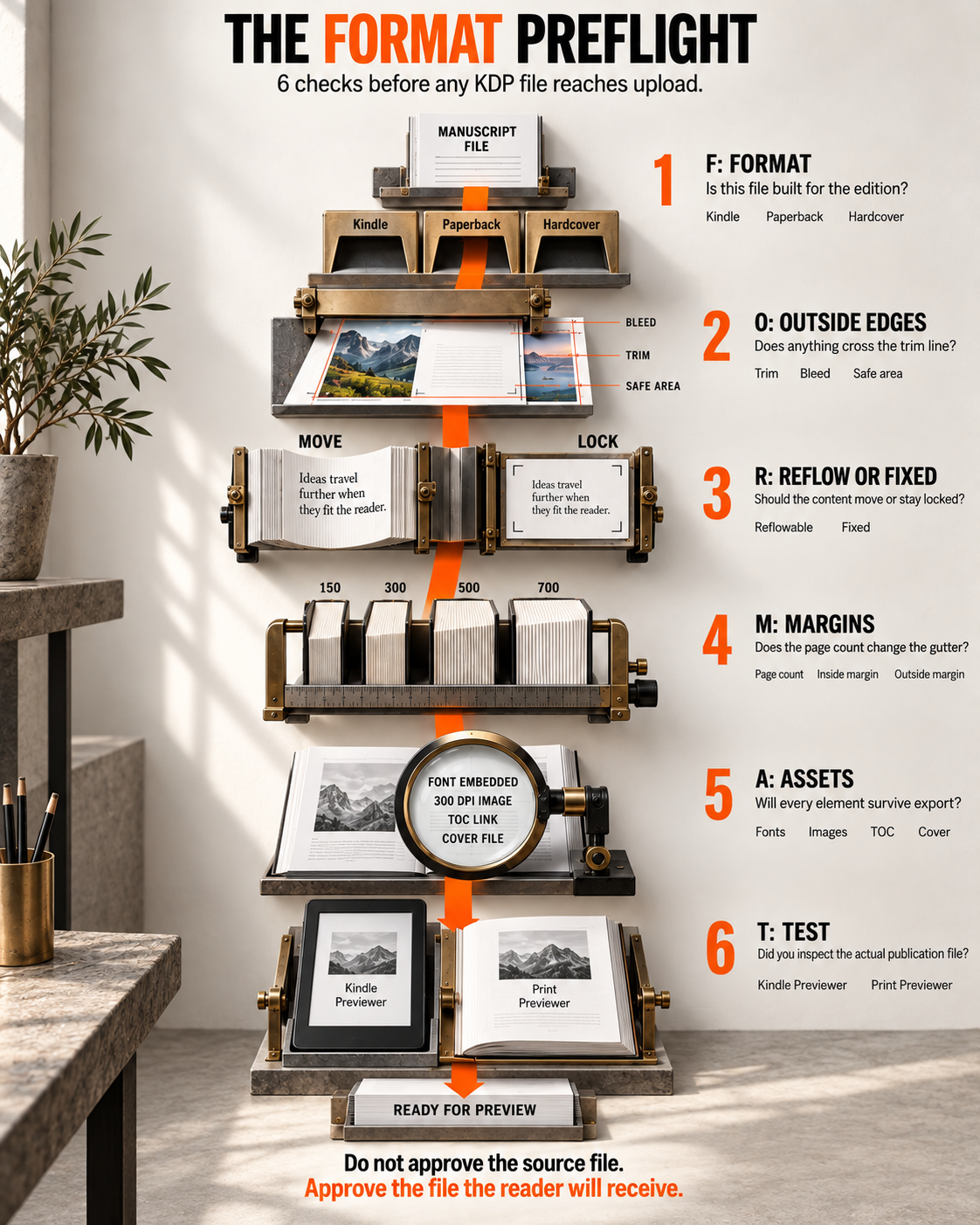
Use the FORMAT Check Before You Upload
F: Format Each Edition Separately
Kindle is not a small paperback.
Paperback and hardcover are not the same cover file.
O: Outside Edges and Bleed
Check every element that approaches the trim line.
If it reaches the edge, confirm the bleed setup.
R: Reflow or Fixed Layout
Text-heavy Kindle books normally need reflowable structure. Print books need fixed page geometry.
M: Margins and Page Count
For print, recalculate the inside margin if the final page count changes.
A: Assets
Check fonts, images, TOC navigation, cover files, and any graphics containing text.
T: Test Before Publication
Use the correct preview tool and inspect the entire edition before approval.
This framework is more useful than memorizing one Word template because it still works when the book, page count, software, or format changes.
Six Steps to Check Your Files Before Upload
1. Freeze the Manuscript First
Finish substantive editing and proofreading before final formatting.
Late text changes can alter page count, line breaks, image placement, and cover spine width.
2. Decide Which Editions You Are Publishing
List Kindle, paperback, and hardcover separately.
Do not assume one master upload file can serve all three without adaptation.
3. Lock the Print Specifications
For paperback or hardcover, confirm:
- trim size
- ink choice
- paper choice
- bleed
- page count
- reading direction
Then build the print interior around those choices.
4. Export the Correct Publication Files
For Kindle, use a supported digital format such as EPUB, DOCX, or KPF.
For print, PDF is the safest standard and is mandatory when the interior uses bleed.
5. Run the Preview Tools
Use Kindle Previewer for digital reading behavior.
Use KDP's Print Previewer for paperback and hardcover files. KDP's automated print check looks for problems including margins, cover size, and fonts before the book reaches manual review.
6. Correct the Source File, Not Just the Symptom
If Previewer finds a problem, return to the original Word, InDesign, Affinity, or other source file.
Fix the cause, export again, and re-upload.
Do not build a chain of patched PDFs that you can no longer edit cleanly.
What Do Authors Most Often Get Wrong?
They Format the eBook Like Print
Headers, footers, page numbers, and fixed spacing often make no sense in a reflowable edition.
Do this: build semantic structure.
Not that: force Kindle to imitate the printed page.
They Choose Trim Size After Designing the Interior
Changing the page dimensions can change paragraph flow, page count, margins, and spine width.
Pick print dimensions first.
They Treat Minimum Margins as Ideal Margins
Passing KDP and looking professionally typeset are separate goals.
A dense 400-page novel may technically fit within KDP's minimums while still benefiting from more breathing room.
They Change the Interior but Forget the Cover
Page count affects the print cover because it affects spine dimensions.
After any meaningful print-layout change, recheck the cover.
They Assume Previewer Is Optional
KDP's Print Previewer is part of the submission workflow, and print files also go through manual review after submission.
Illustrative Example: One Manuscript, Three Different Files
Suppose an author has finished a 320-page nonfiction manuscript.
The Kindle edition needs headings, navigation, clean paragraph styles, working links, and reflowable behavior.
The paperback needs a fixed trim size, the correct inside margin for its page-count range, embedded fonts, and a print-ready PDF.
The hardcover may reuse the properly prepared print interior if its supported trim and page-count setup match, but it still needs a separate hardcover cover built from hardcover dimensions.
Nothing about the author's words changed.
The production requirements did.
That is why “my Word document looks fine” is not a formatting test.
When Can You Format the Book Yourself?
DIY formatting can be sensible when the book is structurally simple and you are comfortable working carefully with styles, margins, page setup, exports, and preview tools.
Kindle Create is particularly relevant for text-heavy books with simple layouts. KDP notes limitations for print projects containing tables, footnotes, endnotes, or edge-bleed images.
Microsoft Word can also work well for straightforward print interiors when the document is built correctly.
The software matters less than knowing what final file KDP expects.
When Does Professional Formatting Make More Sense?
Professional help becomes more useful when the interior contains complex tables, illustrations, footnotes, unusual typography, multiple editions, persistent Previewer errors, full bleed, or a cover whose dimensions keep changing with page count.
Professional book formatting services from Amazon KDP Experts currently cover Kindle and print preparation, including navigation, page structure, interior styling, EPUB/KPF preparation, and print-ready PDF delivery.
Once the files are ready, Amazon KDP publishing support can address upload preparation, metadata, pricing, categories, and final preview checks without taking control of the author's account or final publication decision.
Authors preparing their first release may also want to review the related guide to self-publishing on Amazon mistakes before opening the final KDP submission.
Final Thoughts: Build the File for the Edition
The most important thing to remember about KDP formatting requirements is that there is no single “Amazon book file.”
There is a Kindle reading experience.
There is a paperback manufacturing file.
There is a hardcover manufacturing file.
Each one asks different things from the same manuscript.
Start with the format, follow the current KDP specifications, separate platform requirements from typography preferences, and inspect the finished publication file instead of trusting the source document.
If all three editions are being published, review all three independently before you approve the book.
Check the Files Before You Open the Publish Screen
If the manuscript is finished but you are still unsure whether your Kindle, paperback, or hardcover files meet the current technical requirements, review the editions before submission rather than troubleshooting them after launch.
Amazon KDP Experts book formatting support can review the manuscript's structure and prepare the appropriate publication files while you retain final approval of the book.